We often hear that mobile app accessibility is more complex than web accessibility. Teams do not know where to start, where to find guidance about mobile accessibility, or how to avoid mobile-specific accessibility barriers.
Working at a company with an active community of mobile assistive technology users gives us the opportunity to learn about challenges from the user’s perspective. We recently surveyed our community about their experience with mobile accessibility and would like to share what we learned.
If you remember only one thing from this article, let it be this:
Half of assistive technology users said accessibility barriers have a significant impact on their daily well-being.
Accessibility is more than just product usability. It can affect the quality of life of people with disabilities.
Types of mobile assistive technology
We generally group assistive technologies into three categories:
- Screen readers: software that converts information on the screen into speech or braille.
- Screen magnifiers: software or system settings used to enlarge the screen, increase contrast, and otherwise modify content so it is easier to see.
- Alternative navigation: software and/or hardware that replaces an input device such as a keyboard, mouse, or touchscreen.
Across all assistive technology categories, 81% of the people we surveyed change accessibility settings on their smartphone and/or tablet. Examples of accessibility settings include:
- Increasing font size;
- Turning on captions;
- Extending touch duration;
- Inverting colors.
There are smartphone settings, such as dark mode, that benefit people with disabilities even though they are not considered accessibility settings.
Now let’s take a closer look at each assistive technology category and learn more about the user preferences that shape their digital experiences.
Screen reader users
Both iPhone and Android smartphones have a built-in screen reader. On iPhone, it is VoiceOver, and on Android, it is TalkBack. Both screen readers allow users to explore content by touching and dragging their fingers to hear the content under their fingers read aloud, or by swiping forward and backward through all screen elements in a linear order. Both readers also allow users to navigate by headings or other element types.

The mobile screen reader users we surveyed typically have multiple devices that work together to meet all of their accessibility needs, and they support companies that prioritize mobile accessibility.
- Nearly half of screen reader users also have a smartwatch.
- Half use an external keyboard with their smartphone, and one third use a braille display.
- Almost all consider the accessibility of apps and mobile websites when deciding which companies to support.
The last point is especially important! Accessibility really does influence purchasing decisions and brand loyalty.
Screen magnification users
In addition to magnification, Android smartphones also have various vision-related accessibility features that allow users to change screen colors and text sizes. The iPhone Magnifier app lets users apply color filters, adjust brightness or contrast, and detect nearby people or doors.
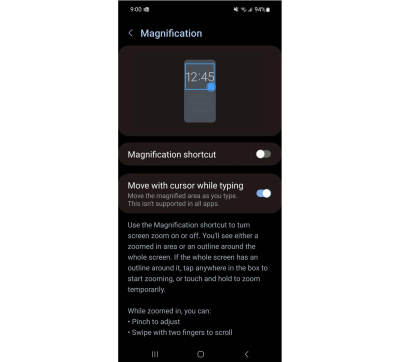
Our survey showed that screen magnification users had the highest percentage of tablet ownership — 77% had both a smartphone and a tablet. Alternative navigation users were close behind, with 62% owning a tablet, but only 42% of the screen reader users we surveyed had a tablet.
Screen magnification users were less likely to research the accessibility of paid apps before buying them (63%) compared with screen reader and alternative navigation users (89% and 91%, respectively). We suspect this is because device magnification, contrast, and color inversion settings may allow users to work around some design decisions that make an app inaccessible.
Alternative navigation users
Switch Access on Android and Switch Control on iOS allow users to interact with their devices using one or more switches instead of a touchscreen. Many things can be used as a switch: an external device, a keyboard, sounds, or the smartphone’s camera or buttons.
Item scanning lets users highlight elements one by one and select the focused element by activating a switch. Point scanning moves a horizontal line down from the top of the screen. When the line is over the desired element, the user activates the switch to stop it. Then a vertical line moves from the left side of the screen. When that line is also over the element, the user stops it with their switch. The user can then select the element at the intersection of the two lines. In addition to these two methods, users can also customize buttons to perform gestures such as swiping down or swiping left.

Android and iPhone devices can be controlled through Voice Access and Voice Control. Both features allow users to speak commands to interact with their smartphone without using the touchscreen. The “Say names” command can reveal labels that are not obvious. The “Show numbers” command lets users say “tap two” to select the element labeled with the number 2. The “Show grid” command is often used as a last resort to select an element. This method overlays a grid on the screen area and lets users select the grid cell containing the focused element.
According to our survey, alternative navigation users were the least likely of the three assistive technology categories to own a smartwatch (26%). All but one of the alternative navigation users who had a smartwatch used it for health tracking. 24% use an external switch device with their smartphone.
Common mobile accessibility barriers
Now that you know about some of the assistive technologies available on Android and iPhone devices, we can examine some specific challenges that users often face when navigating websites and apps on their smartphones.
We will review an inclusive development process that can help uncover barriers specific to your app. If you need general guidance on what to avoid right now, here are the most common mobile accessibility issues experienced by assistive technology users. To get this list, we asked the community to choose up to three of the biggest accessibility barriers on mobile devices.
Unlabeled buttons or links
Unlabeled buttons and links are the biggest challenge reported by assistive technology users. Screen reader users are most affected by unlabeled elements, but so are people who use voice commands to interact with their smartphone.
Small buttons or links
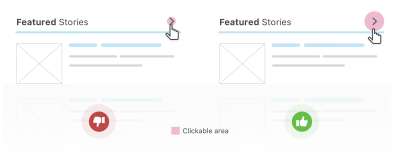
Buttons and links that are too small to tap with a finger, or that require high precision when selecting them with switch features, are a challenge for anyone with mobility issues. Small buttons and links are also difficult to see for anyone with low vision.
Gesture interactions
Gestures such as swipe to delete, tap and drag, and anything more complex than a simple tap or double tap can cause problems for many users. Gestures can be difficult to discover, and if you are not an experienced mobile user, you may never learn them. The best option is to include a button that performs the same action as the gesture. Custom actions can expose more options, but only for assistive technology users — not for people with disabilities who may not use assistive technology, such as people with cognitive disabilities.
Elements that block parts of the screen
A chat button that is always visible and may cover part of the content. A fixed header or footer that takes up a large part of the screen when a user zooms or magnifies their display. These screen blockers can make it very difficult, or even impossible, for some users to view content.
Missing error messages
Keeping the submit button inactive until a form is completed correctly is often used as an alternative to error messages. This approach can be especially challenging for assistive technology users, but also for anyone with cognitive disabilities or lower technical confidence. Sometimes error messages exist, but they are not announced to screen reader users.

Text resizing and pinch zoom
When an app does not respect the font size increases a user has set through accessibility settings, people who need larger text have to find alternative ways to read the content. Some websites disable pinch zoom, a feature that is useful not only for enlarging text but also often used to see images better.
Other mobile accessibility barriers
Accessibility barriers that were not mentioned as often, but still create significant challenges for assistive technology users, include:
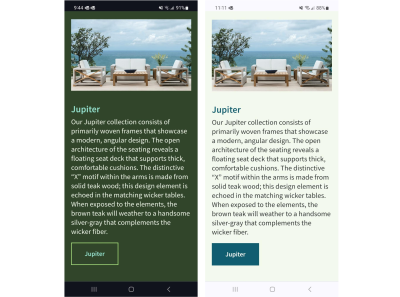
- Low contrast. If the contrast between text and background is low, it is harder for people with low vision to read. Customizable contrast settings can make content readable for a wider range of people.
- No dark mode. For some people, black text on a white background can cause eye pain or migraines.
- Fixed orientation. Not being able to rotate from portrait to landscape can affect people whose device is fixed in position on a wheelchair, or people with low vision who use landscape orientation to make text and images appear larger.
- Missing captions. The absence of captions on videos was also reported as a barrier. This is a barrier we experience personally, because we rely on captions due to a hearing disability.
We knew we would not be able to cover every mobile accessibility barrier in our list of options, so we gave survey respondents a free-text field where they could add their own. Here is what they said:
- Screen reader users encounter unlabeled images or labels that do not make sense. AI-based image recognition technology can help, but often cannot provide the same context that a designer would provide. Screen reader users also encounter apps that unexpectedly move their screen reader focus, changing their position on the screen and causing confusion.
- Voice control users find apps and websites that do not respond to their voice commands. They have to try alternative commands to activate interactive elements, which sometimes slows them down considerably.
- Complex navigation, such as large dynamic lists or menus that automatically expand and collapse, can be difficult to use with assistive technologies. Often there are no alternatives for interacting with navigation, which can affect whether a user abandons an app or website.
Inclusive design methods for mobile devices
It is important to avoid feeling overwhelmed and doing nothing because mobile accessibility seems complex. Instead, focus on solving the most important issues first, then release, celebrate, and repeat the process.
Ideally, you will want to change your processes to prevent new accessibility issues in the future. Here is a high-level inclusive app development process:
- Conduct user research to understand how users’ assistive technologies work and what challenges they face in your existing app.
- Create designs for accessibility features, such as font scaling and state and focus indicators.
- Review the design and get feedback from users that can be applied during development.
- Annotate design files for accessibility based on user feedback and best practices.
- Build the new version and use automated testing tools to find barriers.
- Perform manual quality assurance testing with the new version using your phone’s accessibility settings.
- Release a private version and test again with users before releasing to production.

Conclusion
Fixing and, more importantly, avoiding mobile accessibility barriers can become easier when you understand how assistive technologies work and what common challenges users face on mobile devices. Remember the key takeaway from the beginning of this article: half of the people surveyed felt that accessibility barriers have a significant impact on their well-being. With that in mind, we encourage you not to let a lack of understanding of technical accessibility compliance stop you from creating inclusive apps and mobile-friendly websites.
When you view accessibility through the lens of usability for everyone and learn from assistive technology users, you take a step toward empowering everyone to interact with your products and services independently, helping build a more equitable web.


.webp)
.webp)
.webp)
.webp)
.webp)