
Effective navigation is essential for a functional website, but not everyone uses the web in the same way. While most visitors browse on mobile devices or click with a mouse, many people use only a keyboard. Up to 10 million American adults experience carpal tunnel syndrome, which can cause pain when holding a mouse, while vision problems can make it difficult to follow a cursor. So, if you want broad appeal and accessibility, you should make sure your website is keyboard accessible.
What is keyboard navigation?
Keyboard navigation allows users to interact with your website using only keyboard input. This includes using keyboard shortcuts and selecting elements with the Tab and Enter keys.
Operating systems and specific applications your audience may use include more than 500 keyboard shortcuts. Standard shortcuts for web browsing include Ctrl + F to find words or resources, Shift + arrow key to select text, and Ctrl + Tab to move between browser tabs. While the software companies that created the specific browser or OS are largely responsible for these, you should still take them into account.
Single-key navigation is another important part of keyboard accessibility. Users can move between clickable elements using the Tab and Shift keys, scroll with the arrow keys, press Enter or the space bar to “click” a link, and close pop-ups with Esc.
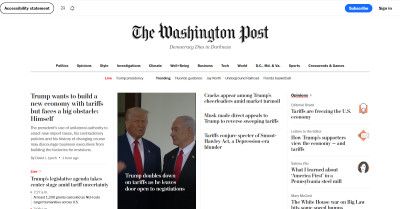
The Washington Post homepage goes even further. Pressing Tab highlights clickable elements, as it should, but the first key press first brings up a link to the site’s accessibility statement. Users can skip this item, but its inclusion highlights how the design understands that keyboard accessibility is an accessibility issue.
You should understand how people may use these controls so you can create a website that supports them. These navigation options are usually standard, so any deviation or missing functionality will stand out. By ensuring keyboard accessibility, especially by allowing the use of these specific shortcuts and controls, you will help meet user expectations and avoid frustrating visitors.
Why is keyboard navigation important in web design?
Keyboard accessibility is important for several reasons. Most importantly, it makes your website more accessible. In the United States alone, more than one in four people has a disability, and many of these conditions affect technology use. For example, motor impairments can make a standard mouse difficult to use, while users with vision problems often need to use a keyboard and screen reader.
Beyond supporting different access needs, enabling a wider range of control methods makes a site more usable. Using a keyboard instead of a mouse is faster when it works as expected, and it can be more comfortable. Considering that employees spend almost a third of their working week searching for information, any obstacle to efficiency can be highly disruptive.
Neglecting these areas can also create legal complications. Legislation such as the Americans with Disabilities Act (ADA) requires technology to be accessible. Although the ADA does not have mandatory rules defining what makes a website accessible, its non-binding guidance specifically mentions keyboard navigation. Failing to support this functionality does not necessarily mean you will face legal penalties, but courts may use these standards when deciding whether your site is reasonably accessible.
In 2023, KitchenAid faced a class-action lawsuit for allegedly failing to meet such standards. The plaintiffs claimed that the company’s website did not support alt text or keyboard navigation, making it inaccessible to users with visual impairments. Although the case was eventually settled out of court, it is a reminder of the potential legal and financial consequences of ignoring inclusion.
Beyond legal considerations, an inaccessible website raises ethical concerns, because it shows preference for people who can use a mouse, even if unintentionally. Even without legal action, public recognition of this bias can reduce visitor numbers and damage your public image.
Elements of a keyboard-accessible website
Fortunately, ensuring keyboard accessibility is a straightforward user experience (UX) design practice. Since navigation is standardised across operating systems and browsers, keyboard-accessible websites use several consistent elements.
Focus indicators
Web Accessibility In Mind states that websites must provide a visual indicator showing which elements are in focus when users press Tab. Focus indicators are usually a simple outline around the highlighted icon.
They are standard in CSS, but some designers hide them, so avoid using outline:0 or outline:none to limit their visibility. You can also increase contrast or change the indicator colour in CSS.
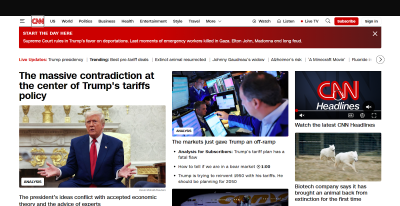
The CNN Breaking News homepage is a good example of a strong focus indicator. When you press Tab, an outline appears immediately. It is bright enough to be easy to see and even uses a white border when it needs to stand out against black or dark site elements.
A logical Tab order
The order in which the focus indicator moves between elements is also important. Generally speaking, pressing the Tab key should move from left to right and from top to bottom — the same way people read in English.
Several mistakes can disrupt this. Disabled buttons interrupt the flow of keyboard navigation by skipping an element without explanation or highlighting it without making it clickable. Similarly, an interface where icons are not arranged in a predictable left-to-right, top-to-bottom order will make logical Tab movement difficult.

The Sutton Maddock Vehicle Rental website is a good example of what not to do. When pressing Tab, the focus indicator jumps from “Contact” to the Facebook link before moving back to the Twitter link. It starts on the right and moves left when it goes to the next row — the opposite of what would feel natural.
Skip links
Skip links are also essential. These interactive elements allow keyboard users to jump to specific content without repeated key presses. Remember that these skip links must be among the first areas highlighted when pressing Tab if they are to work as intended.

The HSBC Group homepage includes several skip links. When pressing Tab, three options appear, allowing users to quickly jump to whichever part of the site interests them.
Keyboard-accessible interactive elements
Finally, every interactive element on a keyboard-accessible website should be reachable through key presses. Anything people can click or drag with a pointer should also support keyboard navigation and interaction. Enabling this can be as simple as allowing users to select all elements with Tab or the arrow keys and activate them with the space bar or Enter.
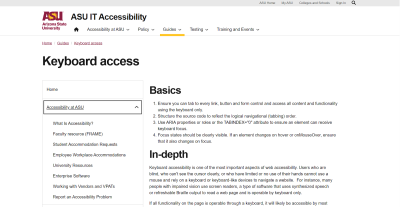
Appropriately, this Arizona State University page about keyboard accessibility demonstrates this concept well. All dropdown menus can be opened by navigating to them with Tab and pressing Enter, so users do not need a mouse to interact with them.
How do you check whether a website is keyboard accessible?
Once you have created a keyboard-accessible UX, you should test it to make sure it works properly. The easiest way to do this is to browse the site using only the keyboard. The table below gives criteria to consider when determining whether your site is genuinely keyboard accessible.
The Web Content Accessibility Guidelines (WCAG) list two testing rules for checking keyboard accessibility:
- The first ensures that all interactive elements can be reached with the Tab key.
- The second checks keyboard scrolling functionality.
Before launching a website, apply both standards in your UX review.
Common problems include not being able to highlight elements with the Tab key, or elements not being arranged in a natural order. You can discover both issues by trying to access everything with a keyboard. However, you may want to carry out an operability audit through a third party. Many private companies offer these services, but you can also use the Bureau of Internet Accessibility for a basic WCAG audit.
Make your website keyboard accessible today
Keyboard accessibility ensures that you consider all needs and preferences when creating an inclusive and accessible website design. Although it is not difficult to implement, it is also easy to overlook, so keep these principles in mind when designing your UX and testing your site.
WCAG provides several techniques you can use to meet keyboard accessibility standards and improve the user experience:
- Technique G90 for keyboard-triggered event handlers
- Technique G202 for general keyboard functionality
- Technique H91 for form controls and links in HTML
Follow these guidelines and use WCAG testing rules to create an accessible website. Remember to test it again every time you add elements or change your UX.
Also consider these recommended reading resources to learn more about keyboards and their role in accessibility:
- “A Keyboard Accessibility Guide: HTML and CSS (Part 1)”, Cristian Díaz
- “A Keyboard Accessibility Guide: JavaScript (Part 2)”, Cristian Díaz
- “A Complete Guide To Mechanical Keyboards”, Ben Frain
- “UX Improvements For Keyboard Accessibility”, Vitaly Friedman
- “I Used The Web For A Day Using A Keyboard”, Chris Ashton
User-friendliness is an industry best practice that demonstrates your commitment to inclusion for everyone. Even users without disabilities will appreciate intuitive and efficient keyboard navigation.


.webp)
.webp)
.webp)
.webp)
.webp)