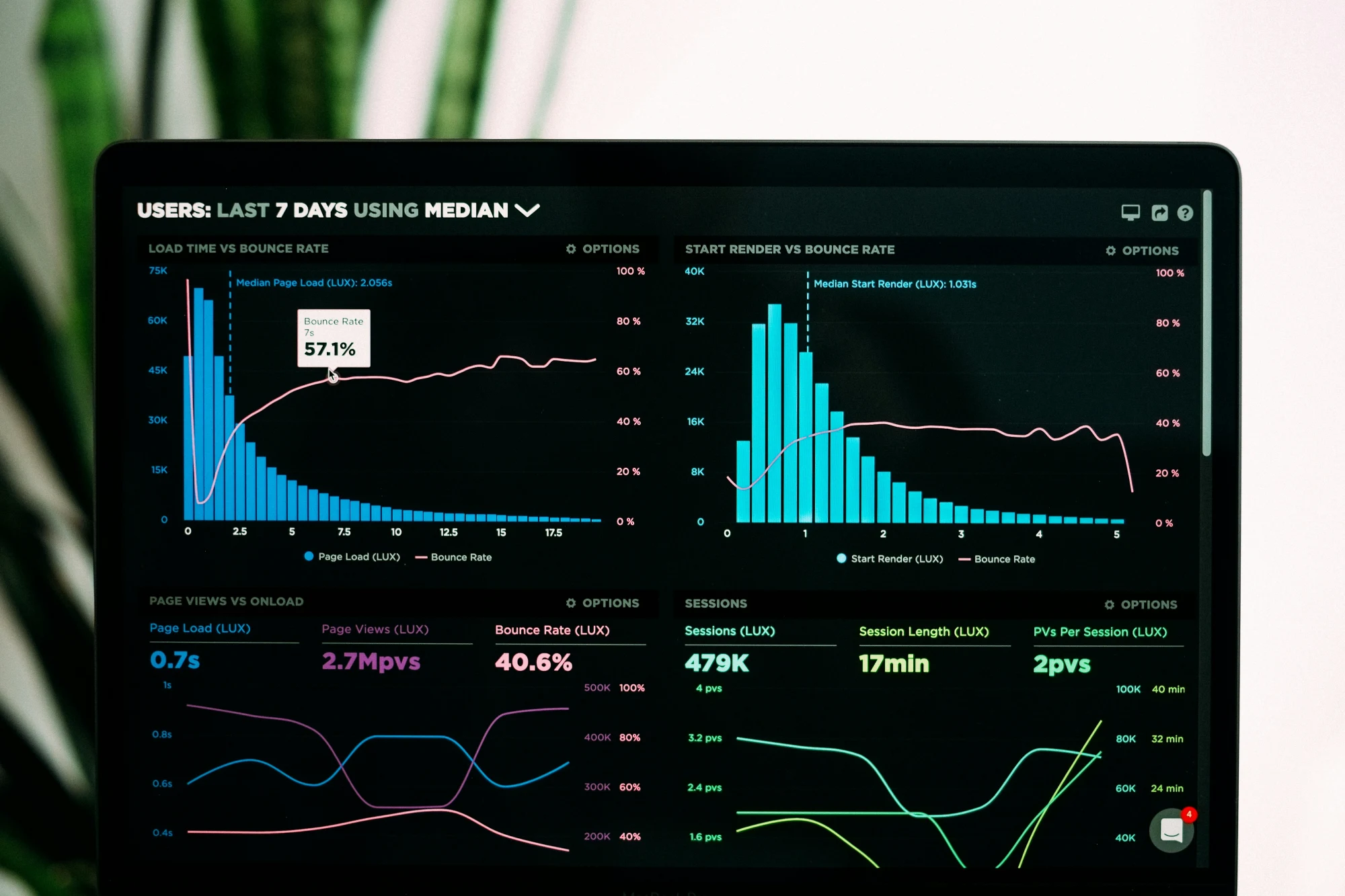
We once worked with a fleet operations team that monitored dozens of vehicles across multiple cities. Their dashboard showed fuel consumption, live GPS locations, and real-time driver updates. Still, the team struggled to see what needed urgent attention. The problem was not a lack of data, but the absence of clear indicators that supported decision-making. There were no priorities, alerts, or context highlighting what mattered most at any given moment.
Real-time dashboards are now critical decision-making tools across industries such as logistics, manufacturing, finance, and healthcare. Yet many of them fail to help users make timely and confident decisions, even when they display live data.
Designing for real-time use is very different from building static dashboards. The challenge is not only to present metrics, but to enable decisions under pressure. Real-time users face limited time and high cognitive load. They need clarity for action, not just access to raw data.
This requires interface elements that support quick scanning, pattern recognition, and attention guidance. Layout hierarchy, alert colors, grouping, and motion cues all help, but they must be grounded in a deeper strategy: understanding what the user needs to decide in that moment.
This article explores practical UX strategies for real-time dashboards that enable real decisions. Instead of focusing only on visual best practices, it analyzes how user intent, personalization, and cognitive flow can turn raw data into meaningful, timely insights.
Designing for real-time understanding: helping users stay focused under pressure
A GPS app does not only show users where they are; it helps them decide where to go next. In the same way, a real-time dashboard should not simply display the latest data. Its purpose is to help users quickly understand complex information and make informed decisions, especially in fast-paced environments where attention spans are short.
How do users process real-time updates?
People have limited cognitive capacity, so they can process only a small amount of data at once. Without proper context or visual cues, rapidly updating dashboards can overwhelm users and pull attention away from the key information.
To address this, we use the following techniques:
- Delta indicators and trend sparklines. Delta indicators make value changes instantly visible, while sparklines are small line charts that reveal trends over time in a compact space. For example, a sales dashboard can show a green upward arrow next to revenue to indicate growth, alongside a sparkline showing sales trends over the past week.
- Subtle micro-animations. Small animations highlight changes without distracting users. Cognitive psychology research shows that such animations effectively guide attention, helping users notice updates while staying focused. For example, a soft pulse around a changing metric can signal activity without overwhelming the viewer.
- Mini history views. Showing a short history of recent changes reduces reliance on memory. For example, a dashboard might let users scrub back a few minutes to review updates, helping them better understand and verify data trends.
Common challenges in real-time dashboards
Many live dashboards fail when they are treated as static reports rather than dynamic tools for fast decisions. In our early projects, we made this mistake, which led to overloaded layouts, distracting elements, and frustrated users.
Typical mistakes include:
- Overloaded interfaces: Displaying too many metrics competes for users’ attention and makes it difficult to focus.
- Flat visual hierarchy: Without clear emphasis on critical data, users may focus on less important information.
- No change log: When numbers update instantly without explanation, users can feel lost or confused.
- Excessive refresh frequency: Not all data needs constant updating. Refreshing too often can create unnecessary motion and cognitive strain.
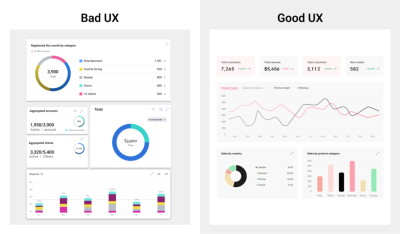
Managing stress and cognitive load
Under stress, users rely on intuition and focus only on directly relevant information. If a dashboard updates too quickly or shows conflicting alerts, users may delay action or make mistakes. It is important to:
- Prioritize the most important data so the user is not overloaded.
- Offer snapshot or pause options so users can take time to process information.
- Use clear indicators that show whether action is required or everything is operating normally.
In real-time environments, the best dashboards balance speed with calm and clarity. They are not just data displays, but tools that support live thinking and better decisions.
Enabling personalization for effective data consumption
Many analytics tools allow users to create custom dashboards, but these design principles help create layouts that support decision-making. Personalization options such as custom metric selection, alert preferences, and refresh cadence help manage cognitive load and improve data interpretation.
Common cognitive challenges in real-time dashboards and UX strategies for addressing them.
Designing for focus: using layout, color, and animation for real-time decisions
Layout, color, and animation do more than improve appearance. They help users quickly interpret live data and make decisions under time pressure. Because users respond to rapidly changing information, these elements must reduce cognitive load and immediately highlight key insights.
Creating visual hierarchy to guide attention
A clear hierarchy directs users’ eyes to key metrics. Arrange elements so the most important data stands out. For example, place critical numbers such as sales volume or system health in the upper-left area to match common scanning patterns. Limit the number of visible elements to around five to avoid overload and ease processing. Group related data into cards to improve scannability and help users focus without distraction.
Using color purposefully to communicate information
Color communicates meaning in data visualization. Red or orange indicates critical alerts or negative trends, signaling urgency. Blue and green indicate positive or stable states, building confidence. Neutral tones, such as gray, support background data and make key colors stand out. Ensure accessibility with strong contrast and combine color with icons or labels. For example, bright red can highlight failures, while muted gray can show historical records, keeping attention on urgent issues.
Supporting understanding with subtle animation
Animation should explain, not distract. Smooth transitions between 200 and 400 milliseconds communicate change effectively. For example, upward movement in a line chart reinforces the impression of growth. Hover effects and quick animations provide feedback and improve interaction. Thoughtful motion makes changes noticeable while preserving focus.

Layout, color, and animation create an experience that enables fast and accurate interpretation of live data. Real-time dashboards support continuous monitoring and decision-making by reducing mental effort and highlighting anomalies or trends. Personalization lets users adapt dashboards to their roles, improving relevance and efficiency. For example, operations managers may focus on system health metrics, while sales directors focus on revenue KPIs. This adaptability turns dashboards into dynamic, strategic tools.
Design element, placement, color, and motion strategies for effective real-time dashboards.
Clarity in motion: designing dashboards that make change understandable
If users cannot quickly interpret change, the dashboard fails, regardless of its visual design. Over time, we developed methods that reduce confusion and make change feel intuitive instead of overwhelming.
One of the most effective tools we use is the sparkline — a compact line chart that shows a trend over time and is usually placed next to a key performance indicator. Unlike full charts, sparklines do not include axes or labels. Their simplicity makes them powerful because they instantly show whether a metric is rising, falling, or stable. For example, placing a sparkline next to monthly revenue immediately reveals whether performance is improving or declining before the viewer even interprets the number.
When using sparklines effectively, follow these principles:
- Pair sparklines with metrics such as revenue, churn, or user activity so users can immediately see both the value and its trajectory.
- Simplify by removing unnecessary elements such as axis lines or legends unless they provide real value.
- Highlight the most recent data point with a dot or accent color, because current performance is often more important than historical context.
- Limit the time range. Too many data points compress the sparkline and reduce readability. A focused window, such as the last 7 or 30 days, keeps the trend clear.
- Use sparklines in comparison tables. When placed in rows, for example by product line or region, they reveal anomalies or emerging patterns that static numbers can hide.
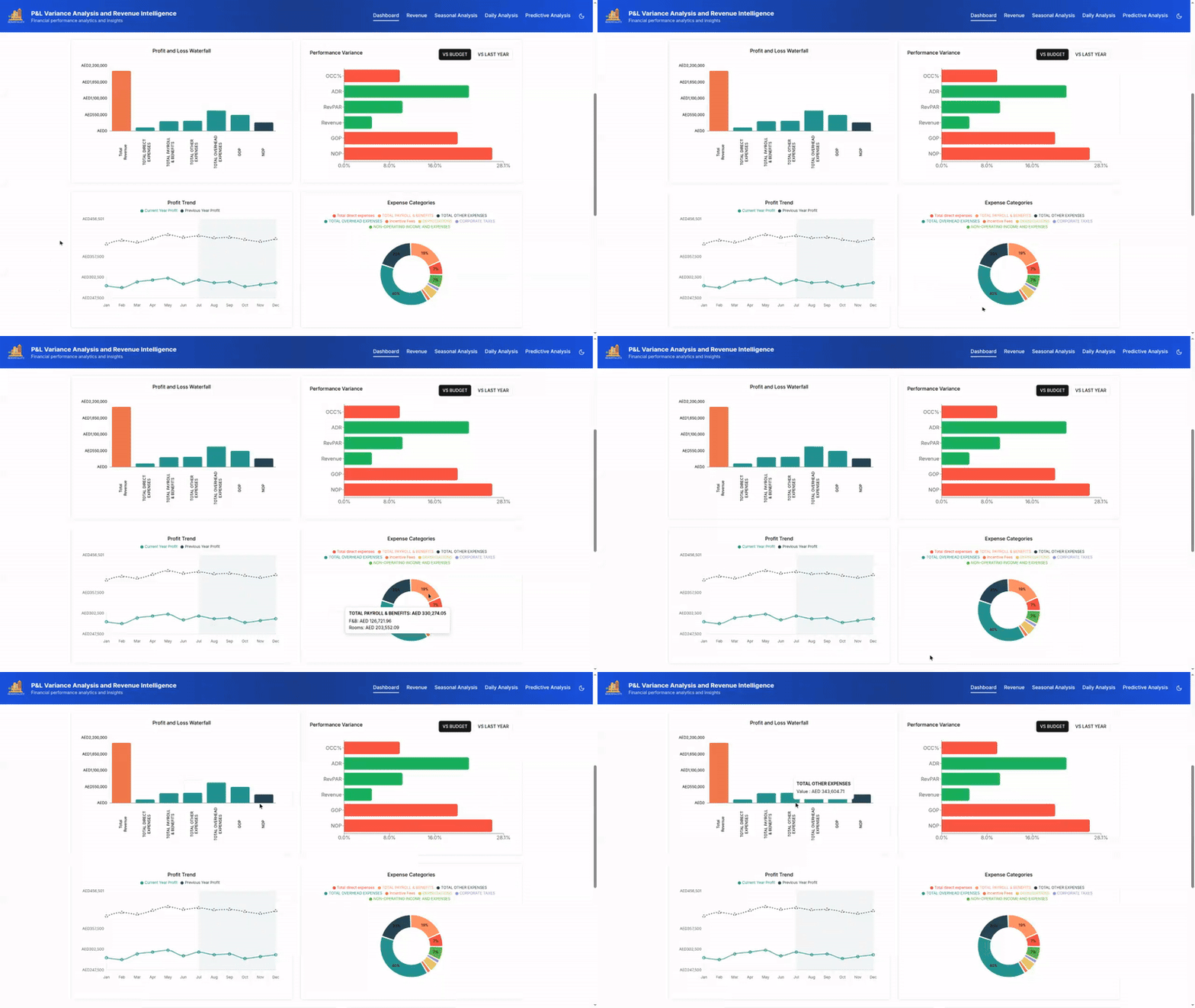
We combine sparklines with directional indicators such as arrows and percentage changes to support quick interpretation.
For example, combining “▲ +3.2%” with a rising sparkline shows both direction and magnitude. We do not rely on color alone to communicate information.
Because 1 in 12 men is color-blind, relying only on red and green can exclude some users. To ensure accessibility, we add shapes and icons alongside color cues.
Micro-animations provide subtle but effective signals. They counteract change blindness — our tendency to miss non-essential changes.
- When numbers update, we use fade-in/fade-out effects or count-up transitions to show change without distracting users.
- If a list is reordered, such as when the ranking of top-performing teams changes, a smooth slide animation lasting less than 300 milliseconds helps users preserve spatial memory. These animations reduce cognitive friction and prevent disorientation.
Layout is very important for explaining change:
- We use modular cards with consistent spacing, alignment, and hierarchy to emphasize key metrics.
- Cards are placed in a sortable grid, allowing filtering by importance, recency, or relevance.
- Expandable sections manage dense information while keeping important data visible for fast scanning and deeper exploration.
For example, in a logistics dashboard, an “On-time deliveries” card can show a weekly sparkline. If performance drops, the line flattens or slightly turns red, a downward arrow appears with a −1.8% change, and the updated number fades out and in. This provides instant clarity without requiring users to open a detailed chart.
All of these design decisions support fast, informed decision-making. In high-speed environments such as product analytics, logistics, or financial operations, dashboards must do more than present data. They must reduce ambiguity and help teams quickly detect change, understand its impact, and take action.
Making reliability visible: designing trust in real-time data interfaces
In real-time data environments, reliability is not just a technical feature. It is the foundation of user trust. Dashboards are used in high-stakes, rapidly changing contexts where decisions depend on timely, accurate data. But these systems often face imperfect conditions such as unreliable networks, API delays, and incomplete datasets. Designing for these realities is not just damage control. It is essential for making the data experience useful and trustworthy.
When data is delayed or fails to load, it can seriously mislead users:
- A drop in a trend line may look like a market downturn when it is only a feed delay.
- Missing categories in a bar chart, if not clearly signaled, can lead to incorrect decisions.
To mitigate this:
- Every data point should be presented together with its status.
- Interfaces must show not only what the data says, but also how current or complete it is.
One effective strategy is replacing traditional spinners with skeleton UIs. These are grayed-out, animated placeholders that suggest the structure of incoming data. They create expectations, reduce anxiety, and show that the system is actively working. For example, in a financial dashboard, users might see the outline of a candlestick chart gradually fill in as new prices arrive. This signals that data is updating rather than stalled.
Handling unavailable data
When data is unavailable, we show cached snapshots from the last successful load, labeled with timestamps such as “Data as of 10:42.” This lets users know what they are seeing. In operational dashboards, such as logistics or monitoring systems, this approach allows users to act confidently even when real-time updates are temporarily out of sync.
Managing connection failures
To manage connection failures, we use automatic retry mechanisms with exponential backoff, giving the system several chances to recover quietly before alerting the user. If retries fail, we keep things transparent with clear bars such as “Offline… Trying to reconnect…”. In one product, this approach prevented users from unnecessarily reloading entire dashboards, especially in locations with unreliable Wi-Fi.
Supporting reliability with accessibility
Reliability is closely connected to accessibility:
- Real-time interfaces must communicate updates without disrupting user focus, not only support screen-reader compatibility.
- ARIA live regions quietly announce significant changes in the background, giving screen-reader users timely updates without confusion.
- All controls remain keyboard accessible.
- Animations respect reduced motion preferences to support users with vestibular sensitivities.
Data freshness indicator
A compact but powerful pattern we often implement is the Data Freshness Indicator — a small widget that:
- Shows sync status,
- Shows the last updated time,
- Includes a manual refresh button.
This improves transparency and reinforces user control. Because different users interpret these cues differently, advanced systems allow personalization. For example:
- Analysts may prefer detailed logs of update attempts.
- Business users may see a simple status such as “Live,” “Stale,” or “Paused.”
Reliability in data visualization is not about promising perfection. It is about creating resilient, informative experiences that support human judgment by revealing the system’s true state.
When users understand what the dashboard knows, what it does not know, and what actions it is taking, they are more likely to trust the data and make smarter decisions.
Real-world case studies
In our work across logistics, hospitality, and healthcare, the challenge has always been turning complexity into clarity. A well-designed dashboard is more than functional; it serves as a trusted decision-making companion by embedding clarity, speed, and trust from the beginning.
1. Fleet management dashboard
A client in the car rental industry was dealing with fragmented operational data. Critical details such as vehicle locations, fuel consumption, maintenance schedules, and downtime alerts were scattered across static reports, spreadsheets, and disconnected systems. Fleet operators had to manually compare data sources even for basic dispatch tasks, causing missed alerts, inefficient routing, and delays. We solved these issues by strategically redesigning the dashboard, focusing on both layout improvements and how users interpret and act on information.
Strategic design improvements and outcomes:
- Instant KPI visibility. High-contrast cards at the top of the dashboard made essential performance indicators immediately visible.
- Example: fuel-consumption anomalies that previously went unnoticed for days were flagged within hours, allowing quick corrective action.
- Clear visualization of trends and patterns. Booking forecasts, utilization charts, and city-by-city comparisons highlighted operational trends.
- Example: a weekday versus weekend booking chart helped a regional manager spot underperformance in one city and plan targeted vehicle redistribution.
- Unified operational overview. Costs, downtime, and service schedules were grouped into one view.
- Result: the operations team could assess fleet health in less than five minutes every morning instead of using multiple tools.
- Predictive context for planning. Visual cues showed peak usage periods and historical demand curves.
- Result: dispatchers prepared for expected spikes, reducing customer wait times and improving resource availability.
- Live map with real-time status. A color-coded map showed vehicle status: green for active, red for urgent attention, and gray for inactive.
- Result: managers quickly identified inactive or delayed vehicles and rerouted resources when needed.
- Role-based personalization. Personalization options were integrated to let each role customize dashboard views.
- Example: fleet managers prioritized financial KPIs, while technicians filtered by maintenance alerts and delayed service reports.

Strategic impact: The dashboard redesign was not just a visual improvement. It changed how teams interacted with data. Operators no longer had to search for insights, because the system presented them in relation to tasks and decisions. The dashboard became a shared reference point for teams with different goals, enabling real-time problem-solving, fewer manual checks, and stronger alignment between roles. Every element was designed to build both understanding and confidence in action.
2. Hospitality revenue dashboard
One of our clients, a hospitality group with 11 hotels in the UAE, was facing a growing strategic gap. They had data from several departments, including bookings, events, food and beverage, and profit and loss, but it was scattered across disconnected dashboards.
Strategic design improvements and outcomes:
- All revenue streams — rooms, restaurants, bars, and profit and loss — were combined into one filterable dashboard.
- Example: a revenue manager could filter by property to see whether a restaurant revenue drop was tied to lower occupancy or was a separate issue. The structure supported daily operations, weekly reviews, and quarterly planning.
- Disconnected charts and metrics were replaced with a unified visual narrative showing how revenue streams interact.
- Example: the dashboard revealed how event bookings affected bar sales or staffing needs. This shifted teams from passive data consumption to active interpretation.
- AI modules for demand forecasting, cost prediction, and pricing recommendations were integrated into the dashboard.
- Result: managers could test price changes with interactive sliders and instantly see the impact on occupancy, revenue per room, and food and beverage revenue. This enabled proactive scenario planning.
- Compact, color-coded sparklines were placed next to each key metric to show short-term and long-term trends.
- Result: these visuals made it easy to spot seasonal changes or channel-specific patterns without switching views or opening separate reports.
- Predictive layers, such as forecast bands and seasonality markers, were added to performance charts.
- Example: if occupancy was rising but lagging behind seasonal forecasts, the dashboard highlighted the gap, prompting early action such as promotions or issue checks.
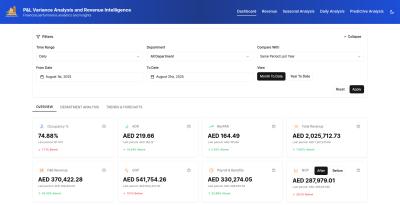
Strategic impact: By aligning the dashboard structure with real pricing and revenue strategies, the client moved from static reporting to forward-looking decision-making. This was not a cosmetic interface update. It was a full rethinking of how data could be used to support business goals. The result allowed every team, from finance to operations, to interpret data according to their specific roles and responsibilities.
3. Healthcare interoperability dashboard
In healthcare, timely and accurate access to patient information is essential. A multispecialty hospital client was dealing with fragmented data. Doctors had to consult separate platforms such as electronic health records, lab results, and pharmacy systems to understand a patient’s condition. This fragmented process slowed decision-making and increased patient-safety risks.
Strategic design improvements and outcomes:
- The patient’s medical history was integrated to combine lab reports, medications, and allergy information into one view.
- Example: a cardiologist could review recent cardiac markers alongside active medications and allergy alerts in one place, enabling faster diagnosis and treatment.
- Lab report tracking was updated to show test type, date, status, and a clear summary with labels such as “Pending,” “Completed,” and “Awaiting review.”
- Result: trends were shown with sparklines and color-coded indicators, helping doctors quickly spot anomalies or improvements.
- A medication management module was added for prescription entry, review, and export. It included dose, frequency, and prescribing doctor details.
- Example: specialists could customize it to emphasize medications related to their practice, reducing overload and focusing attention on critical treatments.
- Quick filtering options were added to search by patient name, medical record number, date of birth, gender, last visit, insurance company, or policy number.
- Example: billing staff could find patients by insurance data, while doctors filtered records by visits or demographics.
- Visual transparency was provided through interactive tooltips explaining alert logic and flagged data points.
- Result: doctors received direct context, such as why a lab value was marked as critical, helping them make informed and timely decisions.
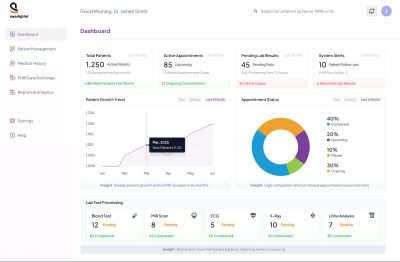
Strategic impact: Our design promotes active decision-making rather than passive data review. Interactive explanations provide visual transparency by explaining the rationale behind alerts and flagged data points. These tooltips give doctors immediate context, such as why a lab value is marked as critical, helping them understand implications and next steps without delay.
Key UX insights from the 3 examples above
- Design should lead to conclusions, not just display data. Contextualized data enabled faster and more confident decisions. For example, the logistics dashboard flagged high-risk delays so dispatchers could act immediately.
- Complexity should be structured, not removed. The tools used timelines, layering, and progressive disclosure to manage dense information. The financial tool groups transactions by time blocks, reducing cognitive load without losing detail.
- Trust requires clear system logic. Users trusted predictive alerts only once they understood their triggers. The healthcare interface added a “Why this alert?” option that explained the reasoning.
- The goal is clarity and action, not visual polish. The redesigns improved speed, confidence, and decision-making. In real-time contexts, delays caused by confusion are more harmful than design imperfections.
Final takeaways
Real-time dashboards are not meant to overwhelm users with data. They are meant to help them act quickly and confidently. The most effective dashboards reduce noise, highlight the most important metrics, and support decision-making in complex environments. Success lies in combining visual clarity with cognitive ease, accounting for human limits such as memory, stress, and attention alongside technical needs.
Do:
- Prioritize key metrics in a clear order so priorities are obvious. For example, a support manager may track open tickets before response time.
- Use subtle micro-animations and small visual cues to show changes, helping users notice trends without distraction.
- Show data freshness and sync status to build trust.
- Plan for edge cases such as incomplete or offline data so the experience remains consistent.
- Ensure accessibility with high contrast, ARIA labels, and keyboard navigation.
Don’t:
- Do not overload the interface with too many metrics.
- Do not rely on color alone to communicate critical information.
- Do not update all data at once or too frequently, as this can create overload.
- Do not hide failures or delays; transparency helps users adapt.
Over time, we have understood that real-time dashboards are decision-making assistants, not control panels. When users say, “This helps me stay in control,” it reflects a design rooted in empathy, one that respects cognitive limits and improves decision-making. That is the true measure of success.


.webp)
.webp)
.webp)
.webp)
.webp)